Troubleshooting guide
UTM Windows 11 ARM No Disk: Diagnose the Missing Virtual Disk Before You Reinstall
Category: Virtualization
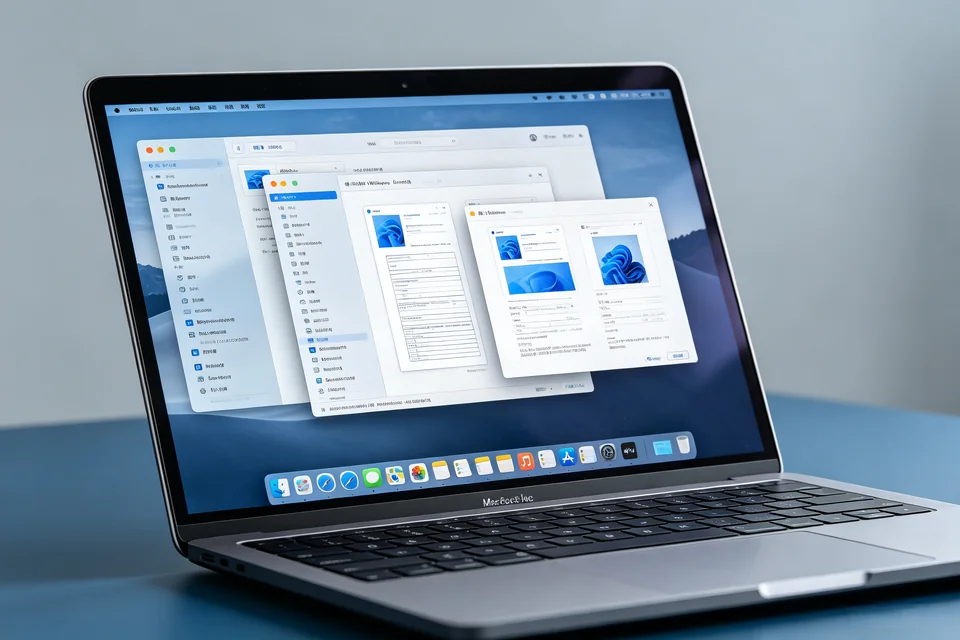
You’re installing Windows 11 ARM in UTM on your Apple Silicon Mac, and setup stops at the disk selection screen because no virtual disk appears. This is a common utm windows 11 arm no disk symptom, and it’s usually caused by a configuration mismatch rather than a broken VM. Let’s check the most likely causes in order.
Check the VM’s drive configuration
Shut down the VM and open its settings in UTM. Under Drives, confirm there is a VirtIO or NVMe drive attached and that it is not set to CD/DVD only. If you only see the installer ISO, add a new drive and set its interface to VirtIO. Save, then boot the installer again. If the disk now appears, the original drive was missing or misconfigured.
Verify the disk is initialized
If the drive exists but still doesn’t show, the virtual disk may be uninitialized. In Windows setup, press Shift+F10 to open Command Prompt, run diskpart, then list disk. If your virtual disk is listed but has no partitions, that confirms it needs initialization. Exit diskpart and return to setup; you can create partitions from the installer’s disk screen.
Check for a driver mismatch
If list disk shows nothing, the installer may lack the storage driver for your chosen interface. In UTM settings, switch the drive interface from VirtIO to NVMe (or the reverse), save, and reboot the installer. A disk appearing after the switch confirms a driver mismatch.
Verification test
After making one change at a time, return to the disk selection screen and refresh. Success means your virtual disk is listed with its full size and you can select it to continue. If it still doesn’t appear, note which check failed and
Ask for help with your UTM drive settings and the diskpart output.
Rollback note
If a change makes things worse, revert the drive interface and reattach the original disk before trying another fix. Keep a snapshot of the VM so you can recover quickly.